Add business rules from a rule mining report
Open the rule mining report: in the
 Provisioning dashboard, go to Business > Rule mining.
If there is no report yet, Create a rule mining report.
Optional: Use
 Filter options to hide conditions that are:
 Potentially redundant: All of the entitlements covered by this condition (set) can be granted by a condition with a higher ranking.
 Covered by configured rules: An existing business rule grants the same entitlements to the same group of persons. The business rule may be in draft or published state.
Optional: Use the search bar at the top to find a condition by attribute name, value, or entitlement name.
Select a condition in the report on which to base a new business rule.
Click
 Show details to open the Details per condition.
Click Create rule.
Tip
Before creating a business rule, consider which persons in the group will receive new entitlements when the rule grants them based on this condition.
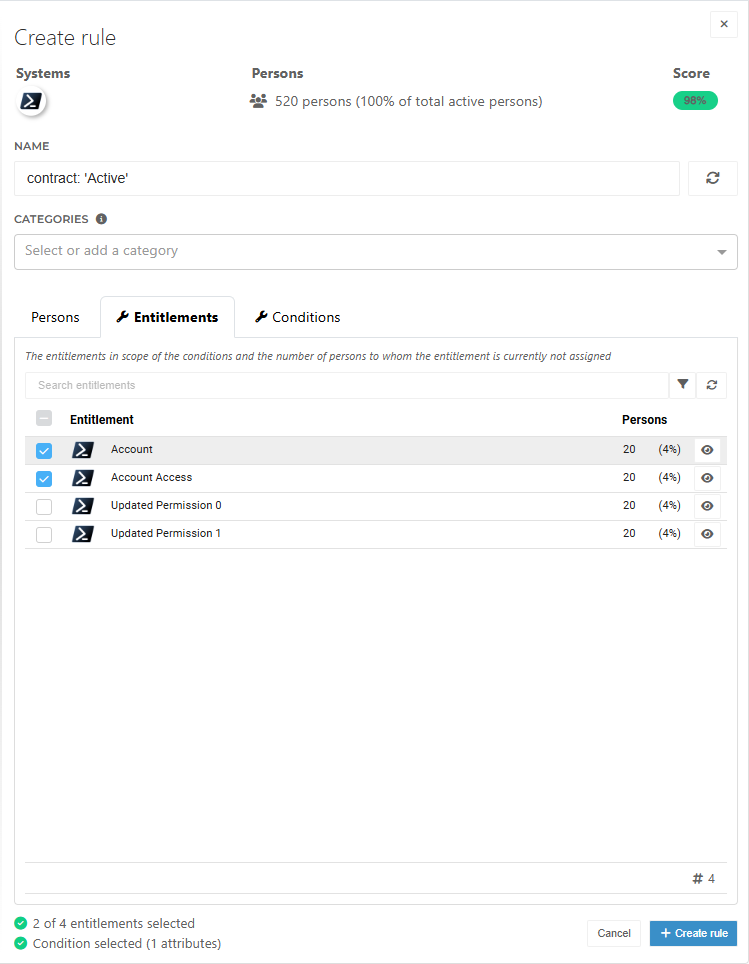
Optional: Change the name of the business rule.
Optional: Select one or more categories for the business rule. Categorizing rules allows you to filter and quickly find them in the Business > Rules overview.
On the Entitlements tab, select any entitlements that should be assigned by the new business rule.
The overview indicates whether:
 An entitlement can be assigned based on a higher-ranked condition or condition set.
- The same entitlement is assigned to the same group of persons by a draft or published business rule that existed when the report was created.
 An entitlement is already assigned by a draft or published business rule that was created based on this report.
On the Conditions tab, select a condition (set) if there are multiple conditions or condition sets that identify the same group.
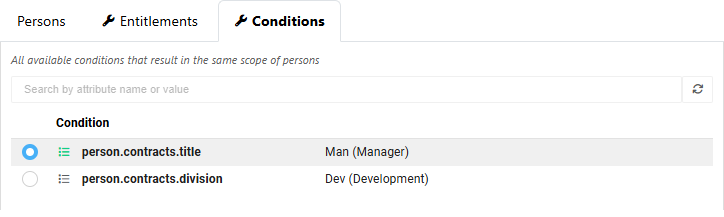
Finally, click Create rule at the bottom.
The new rule is in a draft state. Go to Business > Rules to edit and publish it.