Rule mining report
A rule mining report suggests conditions that you can use in Business rules. Each condition identifies a group of persons who mostly share the same [→Entitlements] in one or more target systems.The report ranks the conditions so that you can build the smallest, most efficient set of Business rules.
To view a rule mining report, go to Business > Rule mining. If there is no report yet, Create a rule mining report.
Export a rule mining report to further investigate the data in Excel or share a report with stakeholders who aren't HelloID administrators.
How the rule mining report selects and ranks conditions
The report lists a condition only if:
the group meets the Minimum group size, and
for each common entitlement, the percentage of group members who don’t have it does not exceed the Maximum amount of exceptions. In other words: there are not too many exceptions to the rule.
You configure both limits when you Set up rule mining.
The report ranks conditions by score. The score shows how efficiently a condition identifies persons with the same entitlement(s).
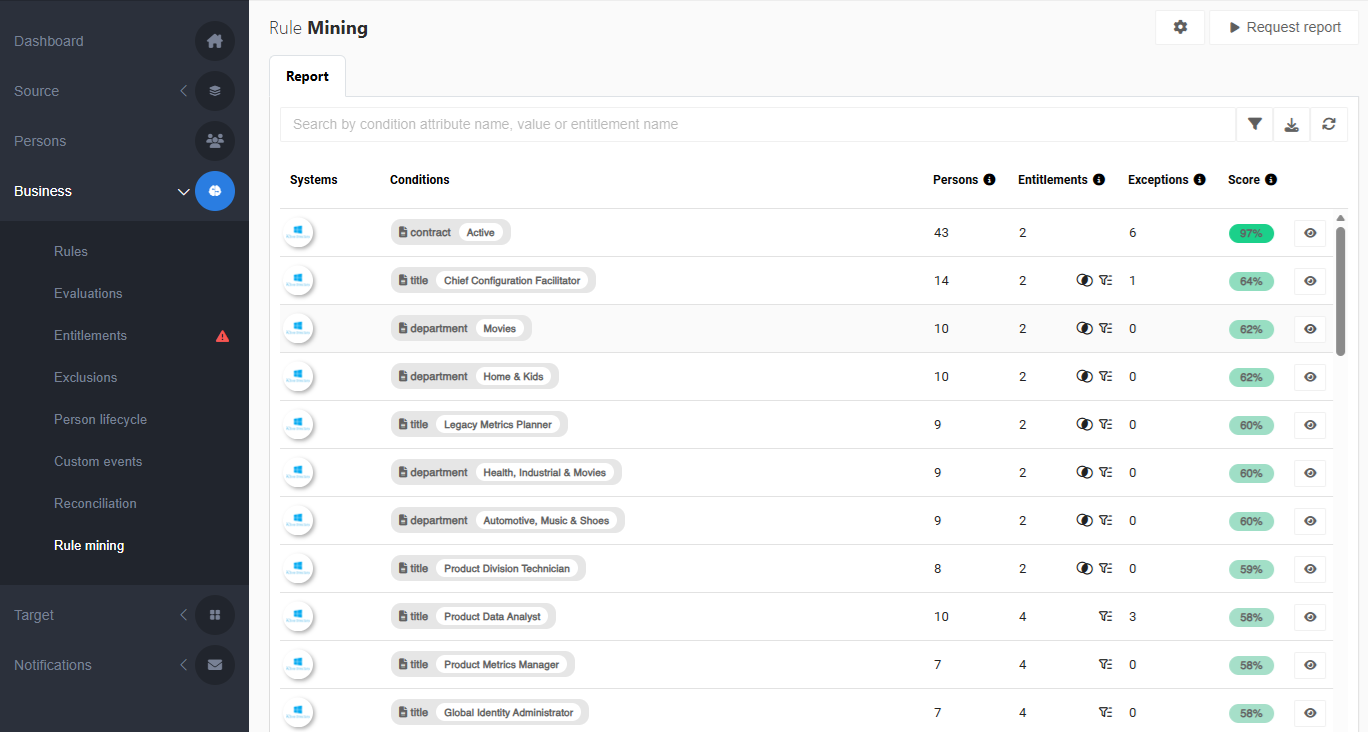
Rule mining report columns
Column | Description |
|---|---|
System | The target system or systems in which the persons who meet the condition share the same entitlement(s). |
Conditions | One or more conditions or condition sets that identify a group in which all or most persons share the same entitlements. A condition consists of a Person schema and/or Contract schema field and value, for example: If the value is a name, hover over it to see the ID or code that was used in the comparison. 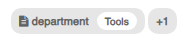 If the screen isn’t wide enough to display all conditions in a set, an indicator shows how many additional conditions are hidden. Hover over the indicator to view all conditions. 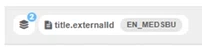 If the same group of persons can be identified by different conditions, an icon at the start of the Conditions column shows how many conditions result in the same group. Click |
Persons | The number of persons that meet the condition. |
Entitlements | The total count of entitlements that persons who meet the condition have in common. For example, if they have an Active Directory account and access to that account, the number is 2. Icons in this column show overlap:
|
Exceptions | The count of missing entitlements for persons who meet the condition. For example, if 3 persons each miss 1 entitlement, the number is 3. A business rule based on this condition would grant this number of entitlements to persons in scope of the condition who do not currently have the entitlement(s). |
Score | A percentage, calculated from the group size and the number of exceptions, that indicates how efficiently this condition identifies persons with the same entitlements in the target system. |

Find conditions in a rule mining report
Search: Use the search bar at the top to find a condition by attribute name, value, or entitlement name. If your search matches an alternative condition or condition set that isn’t currently displayed, the report shows that alternative instead.
Filter: Use the
 Filter options to hide conditions that overlap with:
higher-ranked conditions, marked as
 Potentially redundant
currently configured business rules, marked as
 Covered by configured rules. The Business rules may be in draft or published state.
View condition details
Click  Show details to get more detailed information about a condition, divided over 3 tabs: Entitlements, Persons, and Condition sets.
All of these tabs have a search bar that you can use to find a specific entitlement, person or condition.
Entitlements: The entitlements that at least 80% of the identified group of people have in common.
Per entitlement, you can see how many persons in the group do not currently have it. Click
Show details to view who they are.Click
Filter to include or exclude entitlements based on the target system or whether they are potentially redundant (entitlements that can be granted via a higher ranked condition).
Persons: All persons identified by the condition (or condition set). Persons who do not currently possess one or more of the entitlements common to this group are listed first.
Click
Show details to view which entitlements a person currently misses. Use the search bar to find specific entitlements.
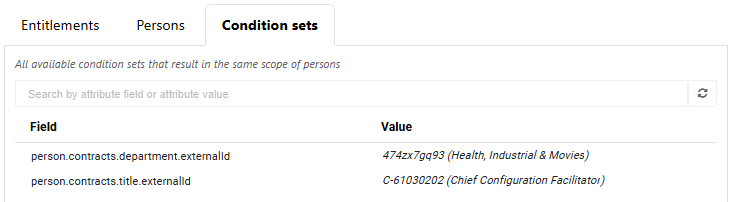
Condition sets: All conditions and condition sets that identify the same group of persons.