Migrate a PowerShell target system to PowerShell v2
PowerShell (v1) systems are deprecated. It is recommended to migrate a PowerShell system to PowerShell v2.
Migrating a system preserves existing configurations, such as thresholds, and business rules that grant entitlements in the system will continue to work. However, before the system can be used in production, target account fields must be mapped, correlation must be configured, and account, permissions, and resource scripts must be updated manually.
Warning
Once started, the migration is irreversible.
Completing the migration requires remapping the target account fields, setting up correlation, and manually updating all account, permissions, and resource scripts.
The target system will be disabled for the duration of the migration and cannot be used until the process is complete.
Before you start
Tools4ever may already provide a PowerShell v2 connector for your target system. Check the Provisioning GitHub resources; see Target system connectors. If no v2 connector is available for your system, refer to the PowerShell v2 connector template repository.
Go to Target > Systems.
Click
 Edit for the relevant system.
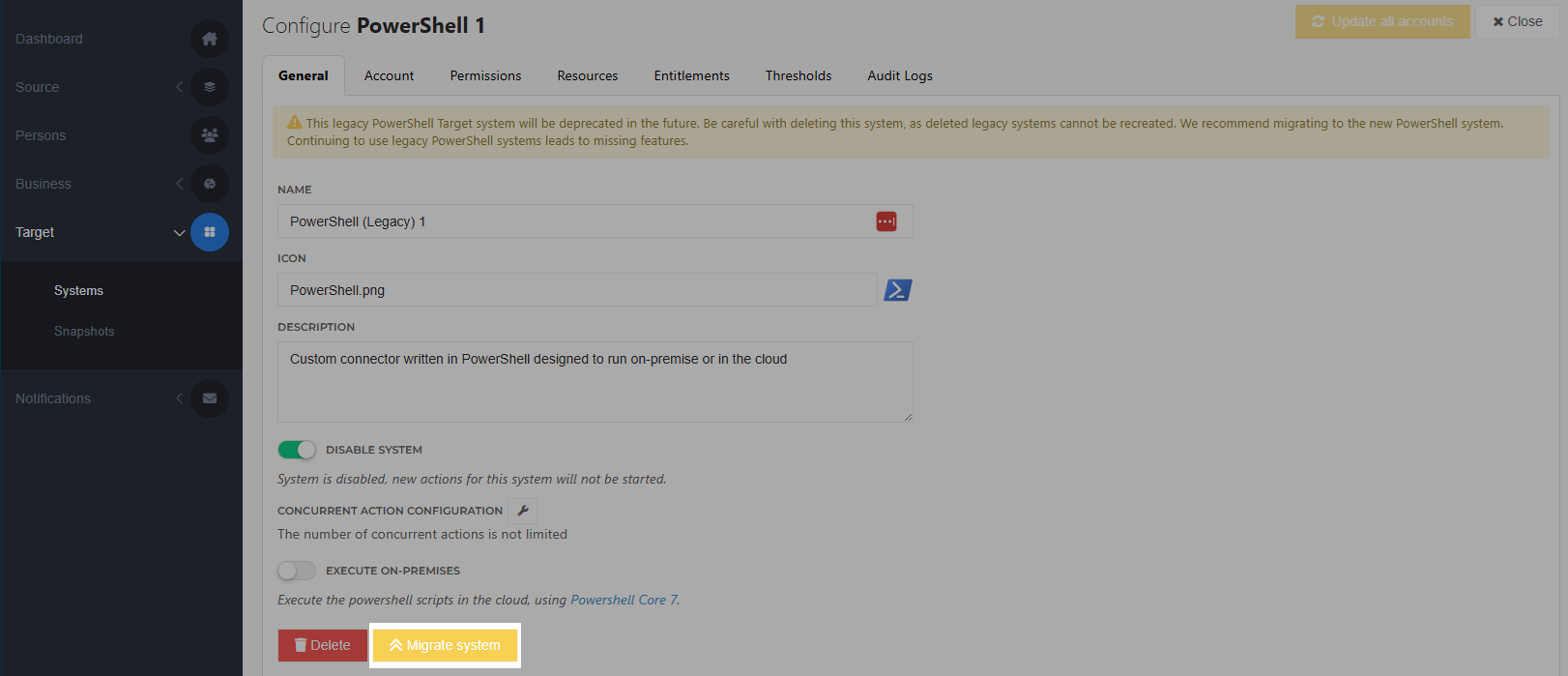
PowerShell v1 systems display a deprecation message at the top of the page and have a Migrate system button on the General tab.
Click Migrate system.
When you are ready to start the migration process, click Confirm.
Once confirmed, the migration is irreversible. The target system is disabled, and cannot be used in production until the migration is completed.
A copy of the system will be created so you can review previous settings and scripts during the migration process. However, the copy cannot be enabled and used in production; it is for reference only.
On the Fields tab, Map fields.
Then go to the Migration tab and check off Field Configuration.
On the Account tab, open the Custom connector configuration and update it if necessary.
If you downloaded the files of a PowerShell v2 connector for your target system from Tools4ever's GitHub resources, its configuration (provided in the
configuration.jsonfile) may differ from the v1 version. In that case, the provided scripts will not work with the configuration or values carried over from the v1 system.For more information, see Configure an input form (PowerShell v1/v2 target systems).
On the Account tab, adjust the Account lifecycle scripts:
Important
The account reference (
AccountReference) must remain the same. If it is modified, account actions don't work as expected, or they fail.If you downloaded a PowerShell v2 connector for your target system from Tools4ever's GitHub resources, you can use its account scripts as a starting point. If no connector is available, use the script templates from the PowerShell v2 connector template GitHub repository.
For input and output variables available in PowerShell v2 account scripts, see PowerShell v2 target system variable reference.
When done, go to the Migration tab and check off the scripts.
For any permission sets on the Permissions tab, update the Single permission script or the Separate permission scripts as appropriate.
Go to the Resources tab. If a Resource create script exists, update it.
Go to the Migration tab. When all boxes are checked, you can click Complete migration and Confirm.
The PowerShell v2 target system is now enabled.
The copy of the PowerShell v1 system will be removed 90 days after completing the migration.