Use a code snippet in a product action
Add a product action (steps 1 - 5).
Click the Code snippet library tab.
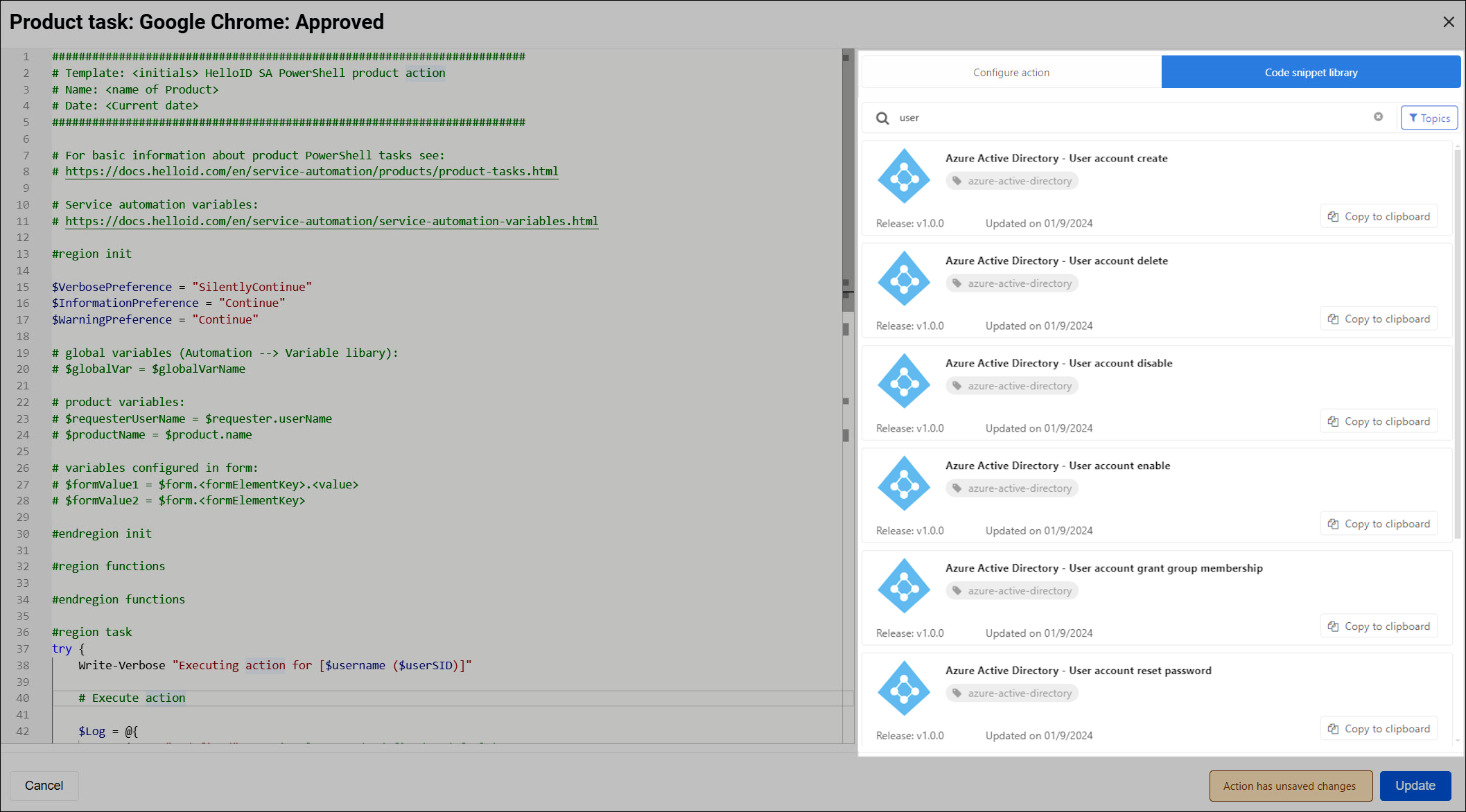
When you are adding a product action (on the Actions - new tab), the code snippet library gives access to all PowerShell product action snippets on GitHub.
On the Code snippet library tab you can search for PowerShell snippets. For detailed instructions, see Code snippet library.
Tip
Click the title of a snippet to view its code, readme file, and release notes.
Click the snippet's Copy to clipboard button, paste the code into the editor, and click Save.
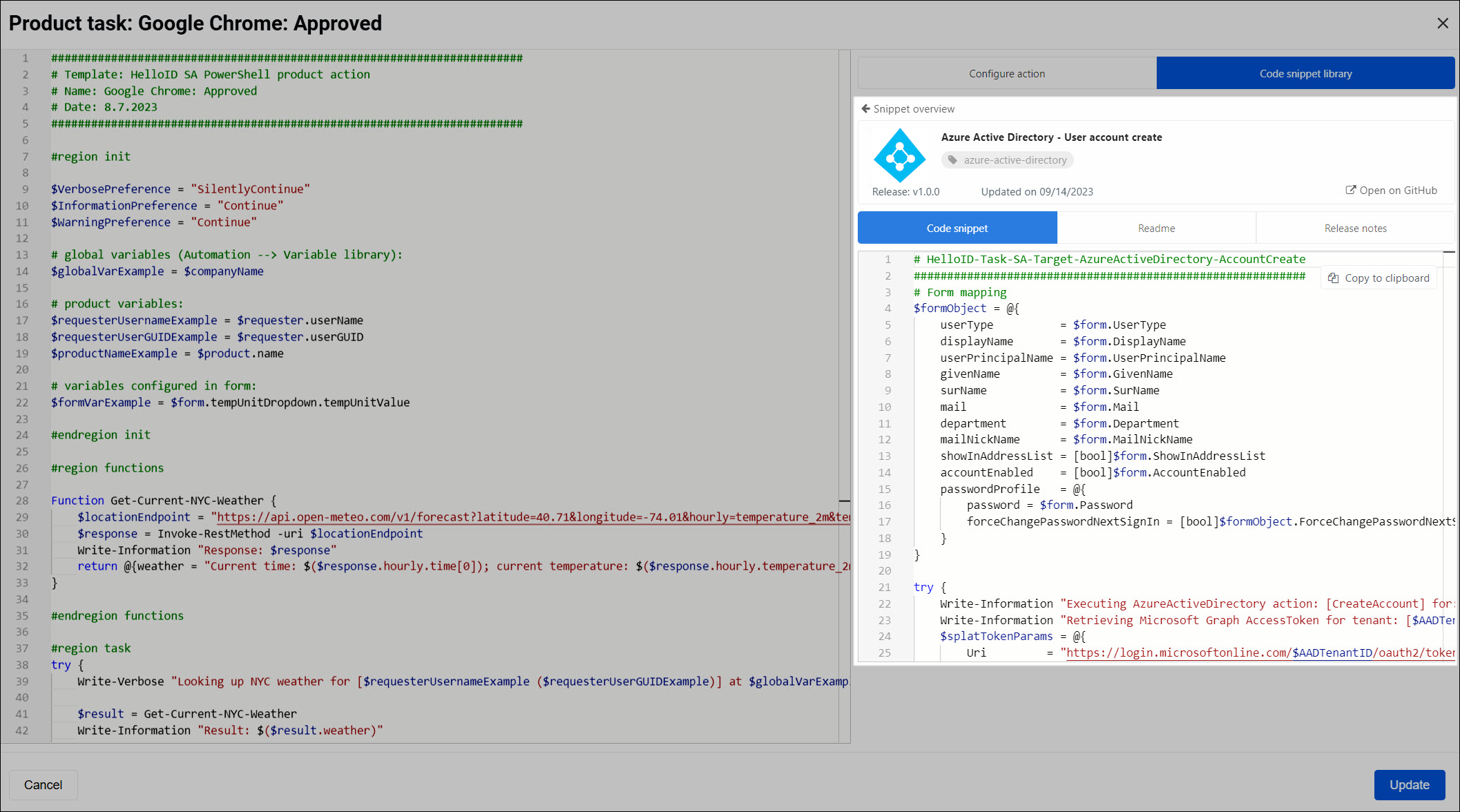
Most snippets require you to create and link a dynamic form to the product, to collect the needed values for
$formObject. Each snippet's readme file contains sample JSON that describes what the form needs to collect.For example, the "Azure Active Directory - User account update manager" snippet requires a
UserIdentity, aUserPrincipalName, and aManagerIdentity: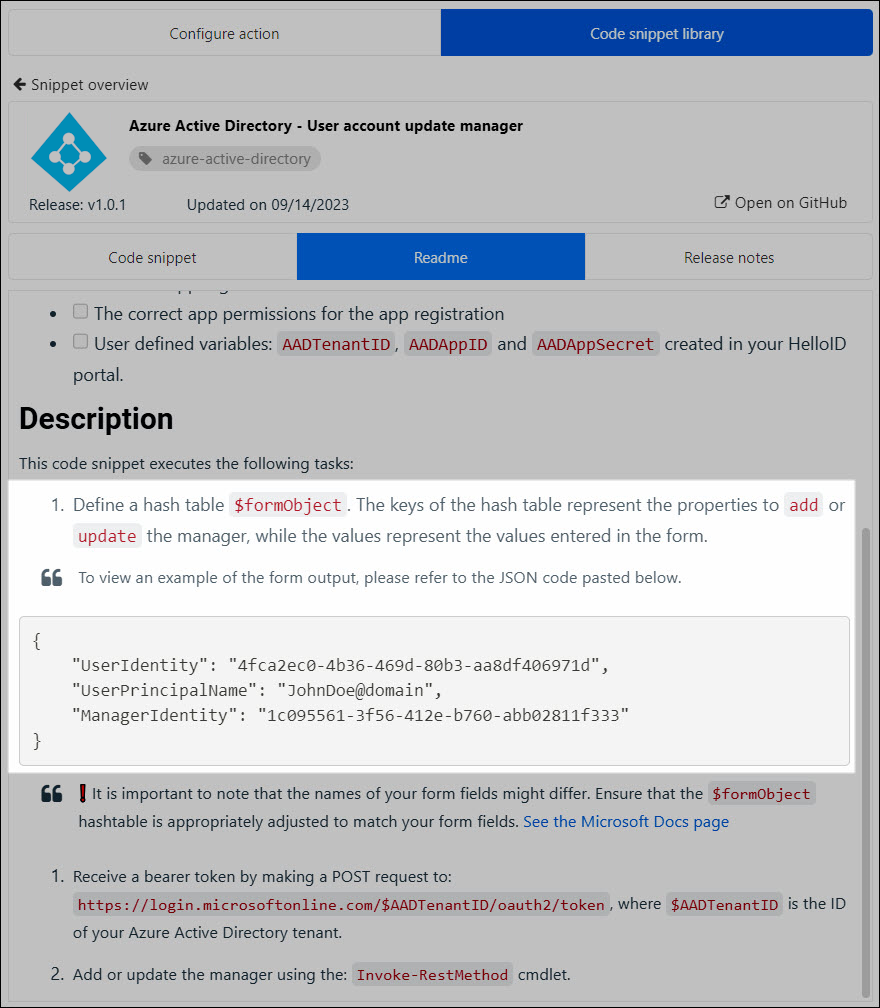
To create and link a form:
Add a dynamic form with the necessary Form elements to capture the input values for the snippet. For example, the above snippet would need two appropriately scoped User Selector elements. If needed, use Data sources to populate your elements.
Customize the code of the product action; see Add a product action (step 8).