Link an account to a person (Import entitlements report)
Existing accounts in a target system can be linked to Persons using the Import entitlements report. When the target system entitlements are imported, HelloID will mark the linked account as granted to the person. During the next Enforcement, HelloID inserts the person's Correlation value into the account.
To successfully link an account to a person, several conditions must be met. For example, the person's correlation value must be correct, the person must be in scope of a business rule that assigns the account and no account may have already been assigned to the person. For instructions on how to check these conditions, see: Manually correlate an account to a person.
Open the Import entitlements report for the relevant target system:
Go to Business > Entitlements.
Open the Import tab.
Select the target system.
If there is no Import entitlements report for the target system, create it; see Import target system entitlements.
Optional: Click the
 Filter button and select No account to show only people who don’t yet have an account in the target system.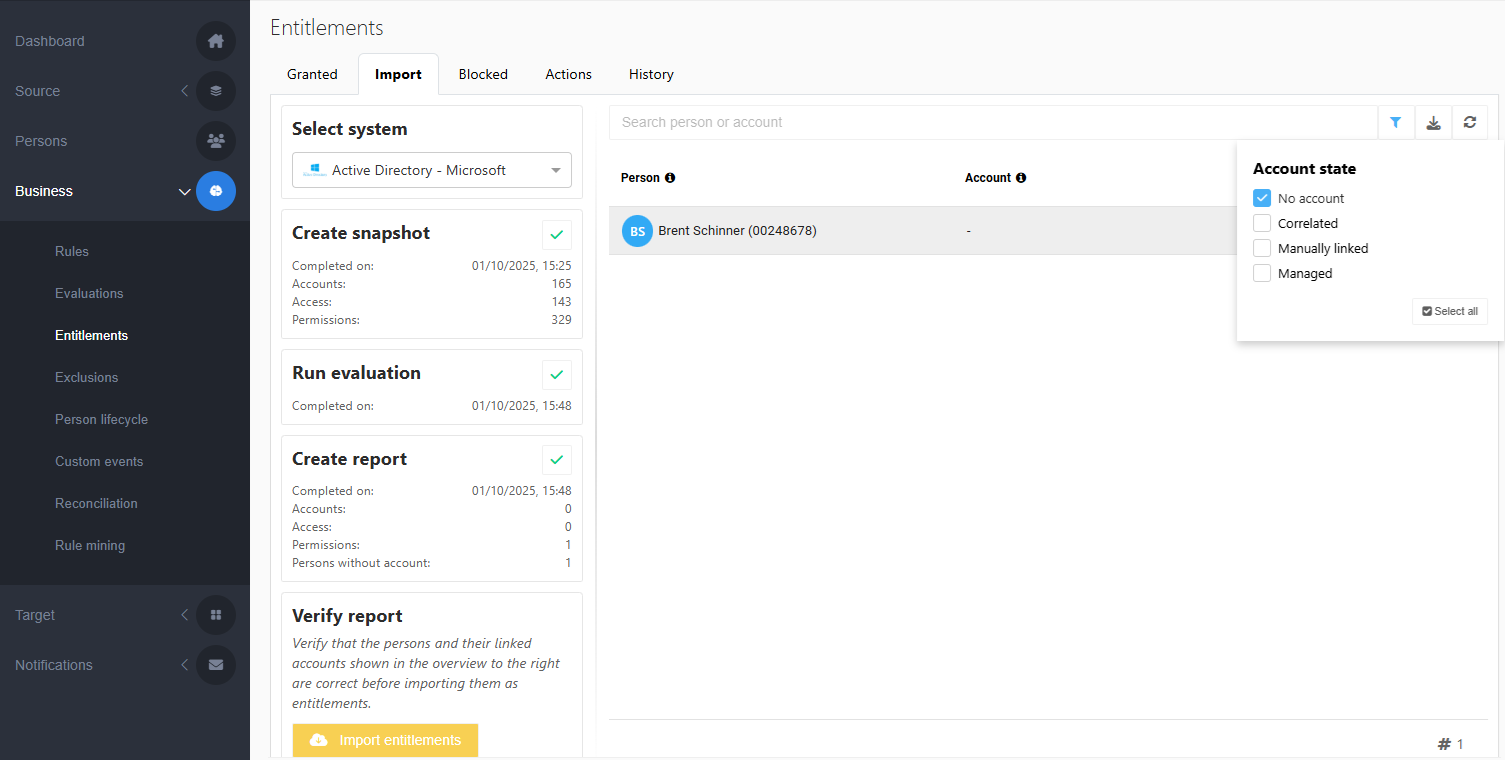
Click the
 Link button in the row corresponding to the person.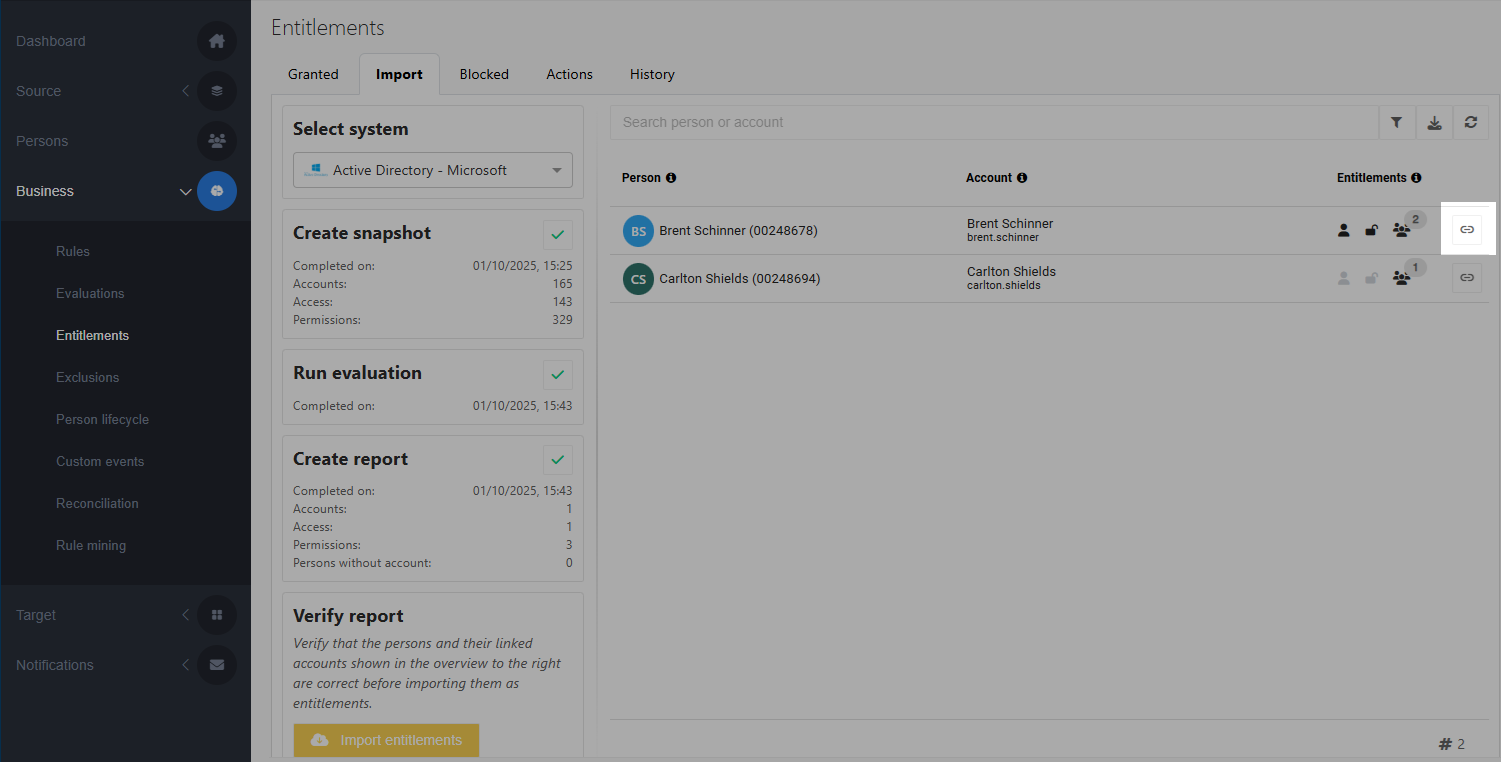
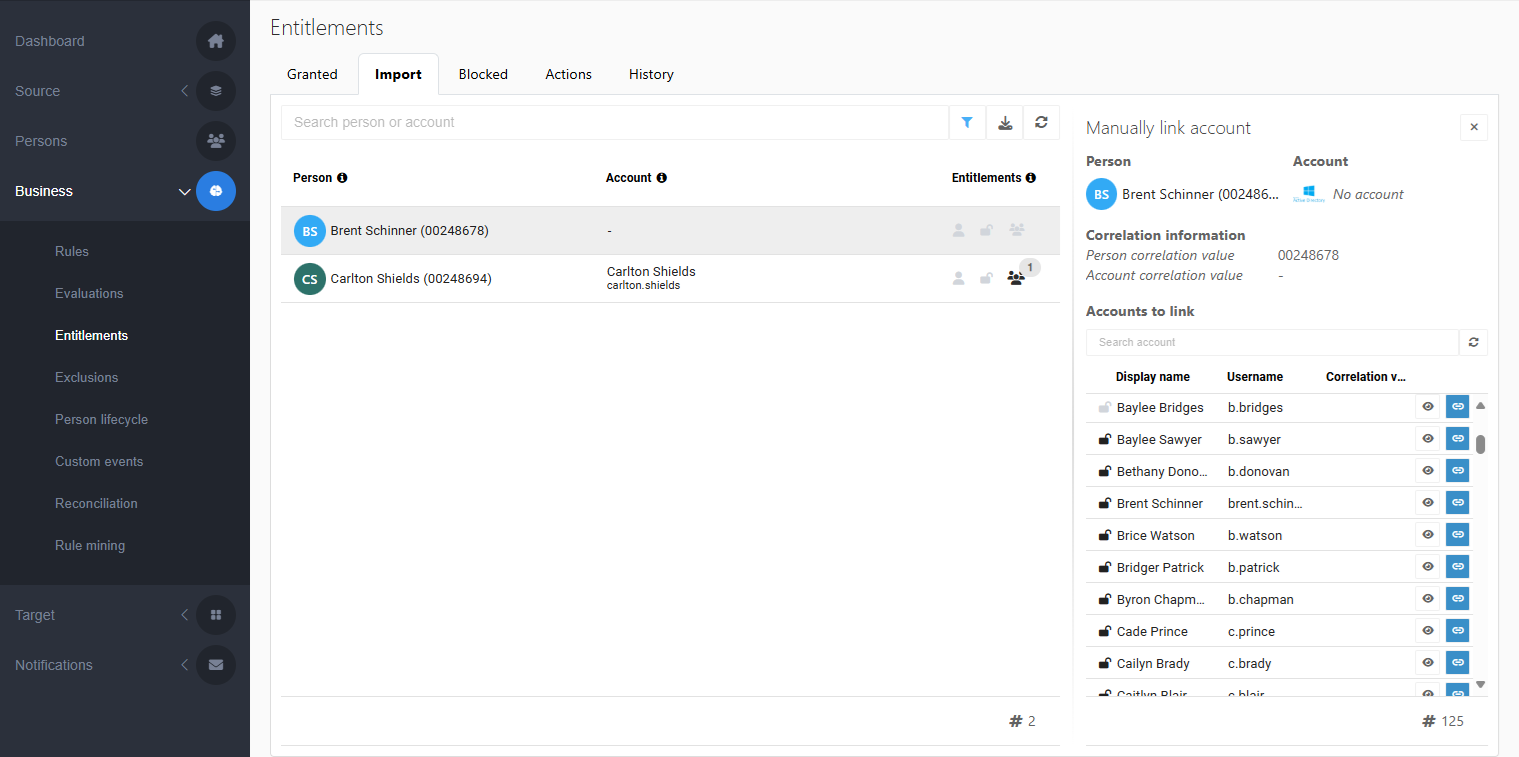
All uncorrelated and unmanaged accounts are listed at the right.
Tip
If the account you are looking for is not listed, it may be correlated to the wrong person. See Fix a wrongly correlated account.
Optional: Click the
 View properties button (eye icon) to view an account's properties.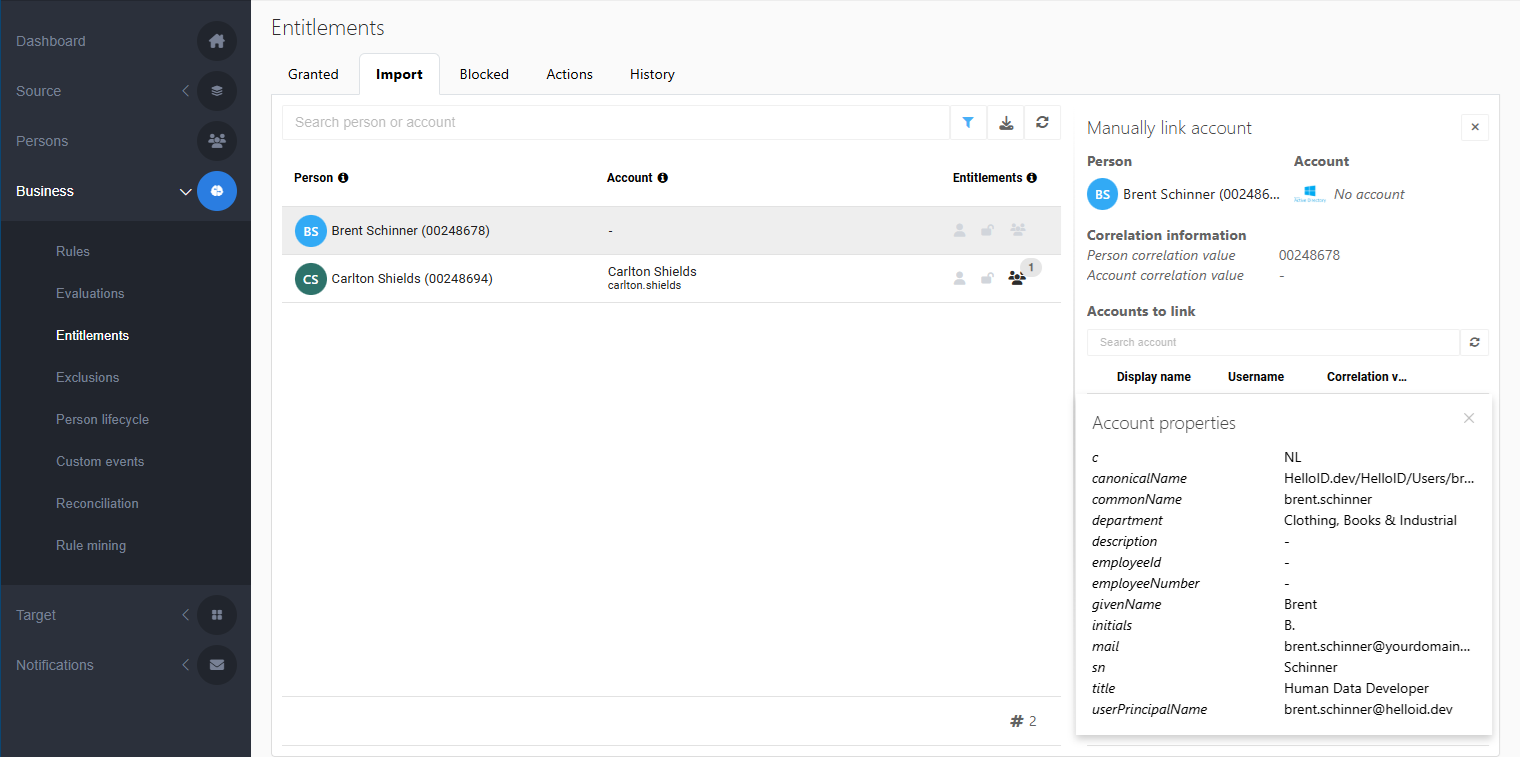
Click the
Link button to link the account to the selected person.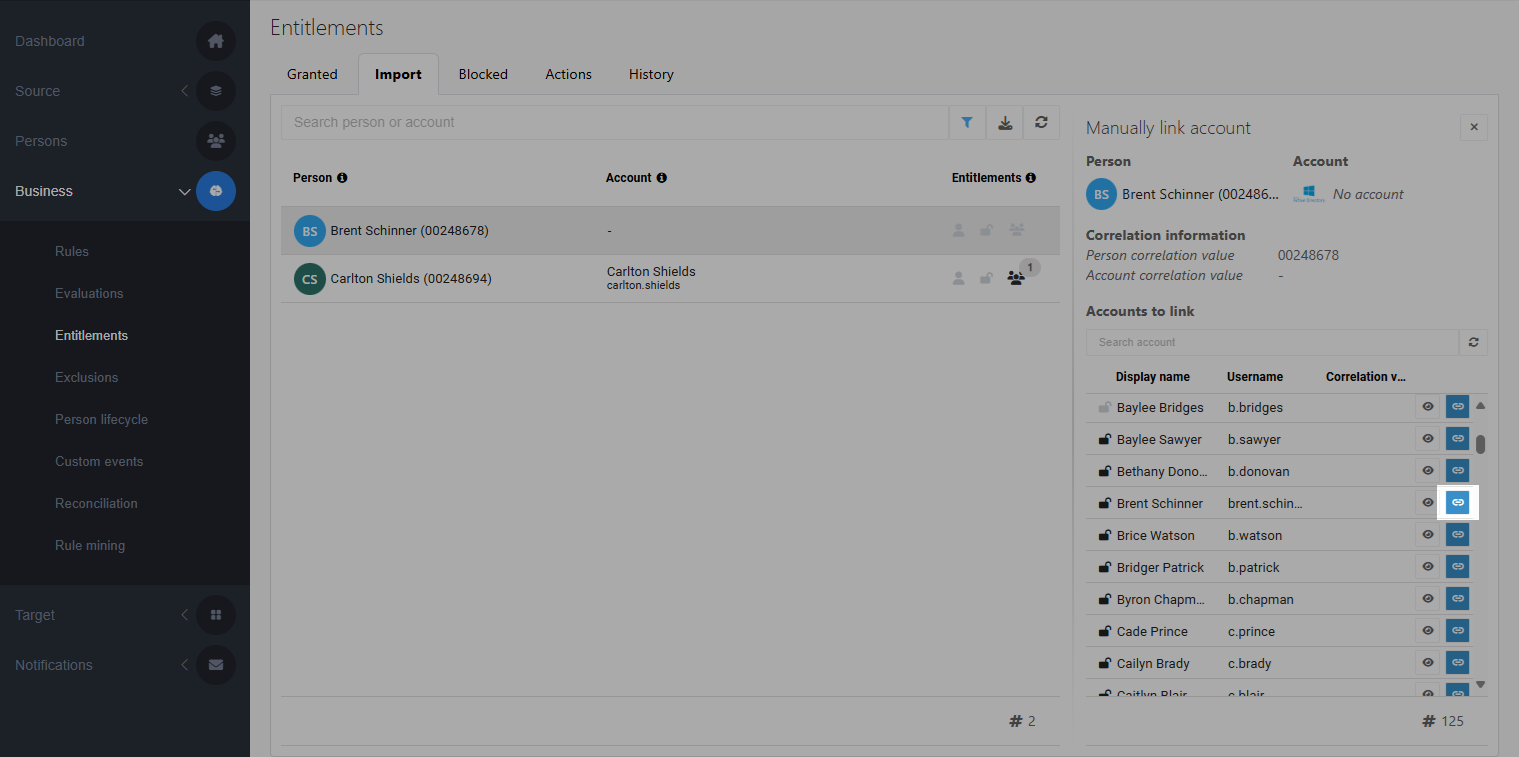
In the report, the person's account state is now Manually linked.
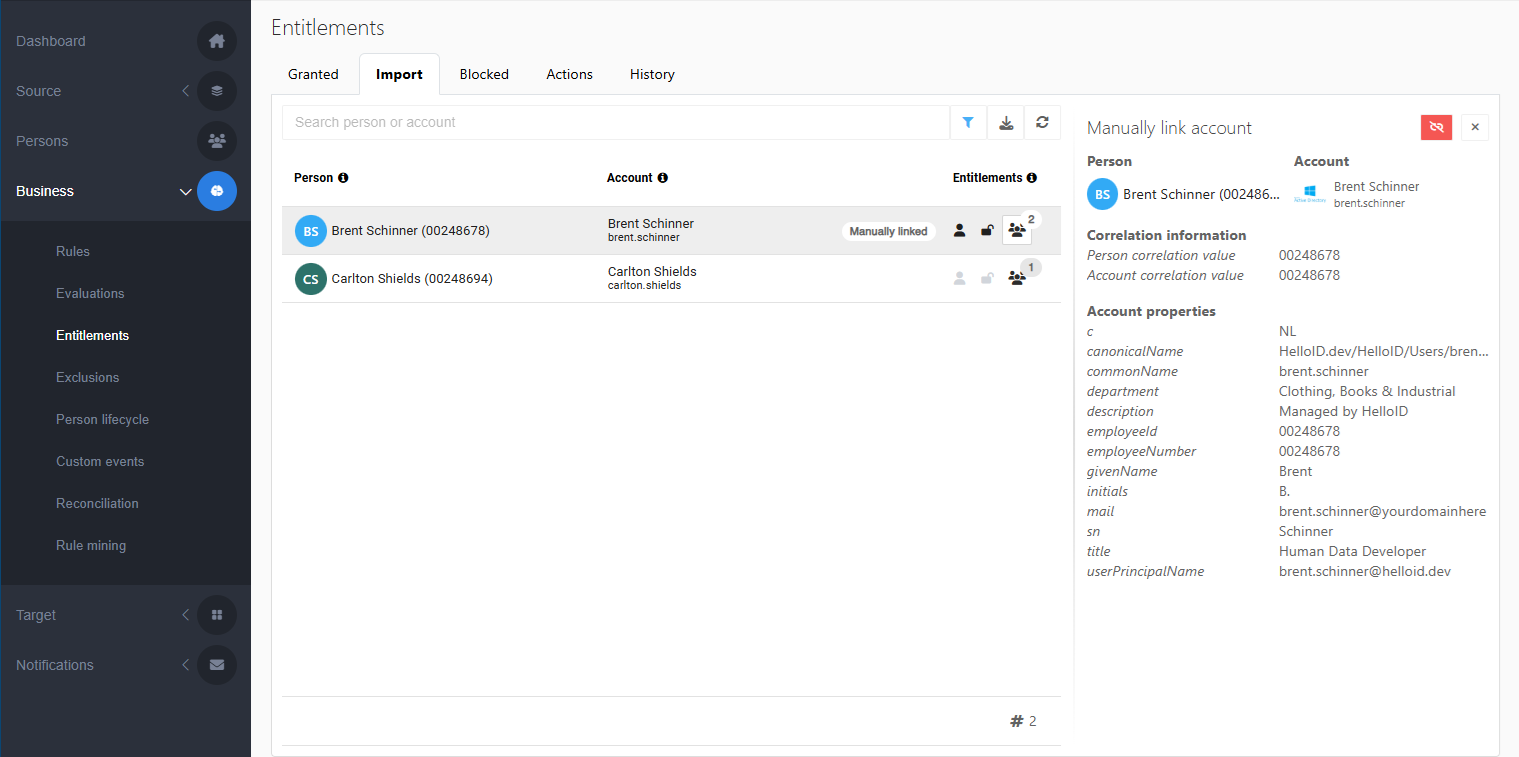
If needed, you can click the
 Unlink button to undo the manual link.
The account will be managed in HelloID as soon as the entitlements are imported.
The correlation value of a manually linked account will be updated to match the selected person’s correlation value during the next enforcement.
Tip
If an account was mistakenly granted to a person in HelloID, you can Unmanage it. See: Fix a wrongly correlated account.