Frequently Asked Questions
FAQ: Provisioning
Accounts
- Q: Can I manually update a person's account data in HelloID?
- Q: A person's employee number in the account field of a target system is incorrect. Why is that, and what should I do?
- Q: One person has two accounts in the target system. Why is that, and what should I do?
- Q: How do I cancel an action for a person that is no longer present in the source system?
- Q: Updates to an account fail with an error, indicating that the account was probably deleted. How do I resolve this?
- Q: Can I see in the logs which Active Directory attributes were changed, including their previous and new values?
Q: | Can I manually update a person's account data in HelloID? |
A: | No, manual updates to a person’s account data in HelloID are not supported. Data from a target account should only be stored in HelloID if it serves a clear purpose, for example when it is used in another (dependent) target system. If it is necessary to store data from a target account in HelloID, you can achieve this by configuring the target mapping appropriately. Map the desired field in the target mapping to an action - for example, the Update action -, set the mapping type to None and enable Store in account data. See Target mappings in Active Directory or Target mappings in PowerShell v2 target systems. |
Q: | A person's employee number in the account field of a target system is incorrect. Why is that, and what should I do? |
A: | Check the source system data. If the employee number was changed recently, the account may not have been updated yet. The issue may also be caused by Person aggregation. Duplicates can be merged - automatically or manually, depending on how person aggregation is set up - into a single person in HelloID. One person is designated as the main person, while the others become non-main persons. All contracts are associated with the main person. Whenever necessary, the main person's personal data is used. If one of the contracts changes after the merge, it may affect target account attributes like job title or manager. However, it doesn't change who the main person is, so personal data, such as an employee number, stays the same. (See Aggregation basics.)
TipWhen merging separate persons, set the person with the desired entitlements (such as target accounts) as the main person. This way, their accounts and other entitlements remain managed in HelloID. You can Manually replace a main person in a merge set later if you want the personal data, such as an employee ID, of the other person to be used. For more information, see Aggregation basics. |
Q: | One person has two accounts in the target system. Why is that, and what should I do? |
A: | The most likely reason is that an account could not be correlated with the person, causing a new account to be created alongside the existing one. To correct this, see Fix a wrongly correlated account. Another possible reason is that there are two entries for this person in the source system, and they have been imported into HelloID as separate individuals rather than being merged into a single person. To solve this:
|
Q: | How do I cancel an action for a person that is no longer present in the source system? |
A: | When a person has been removed from the source system, entitlement actions can get stuck. Unmanage the entitlement to resolve this. |
Q: | Updates to an account fail with an error, indicating that the account was probably deleted. How do I resolve this? |
A: | This usually occurs when the account was manually deleted from the target system.
After this, during the Grant - Account action, HelloID will either link the existing account with the person or create a new account. |
Q: | Can I see in the logs which Active Directory attributes were changed, including their previous and new values? |
A: | This information is not available in HelloID's Audit logs, which primarily contain workflow information, but can be retrieved when AD Auditing is enabled.
|
Source systems
Q: | How can I see which changes are associated with blocked Source snapshots? |
A: | While you cannot view the specific details of blocked source snapshots, you can review the related changes: Navigate to Source > Snapshots. Select the blocked snapshot. Under Summary, click 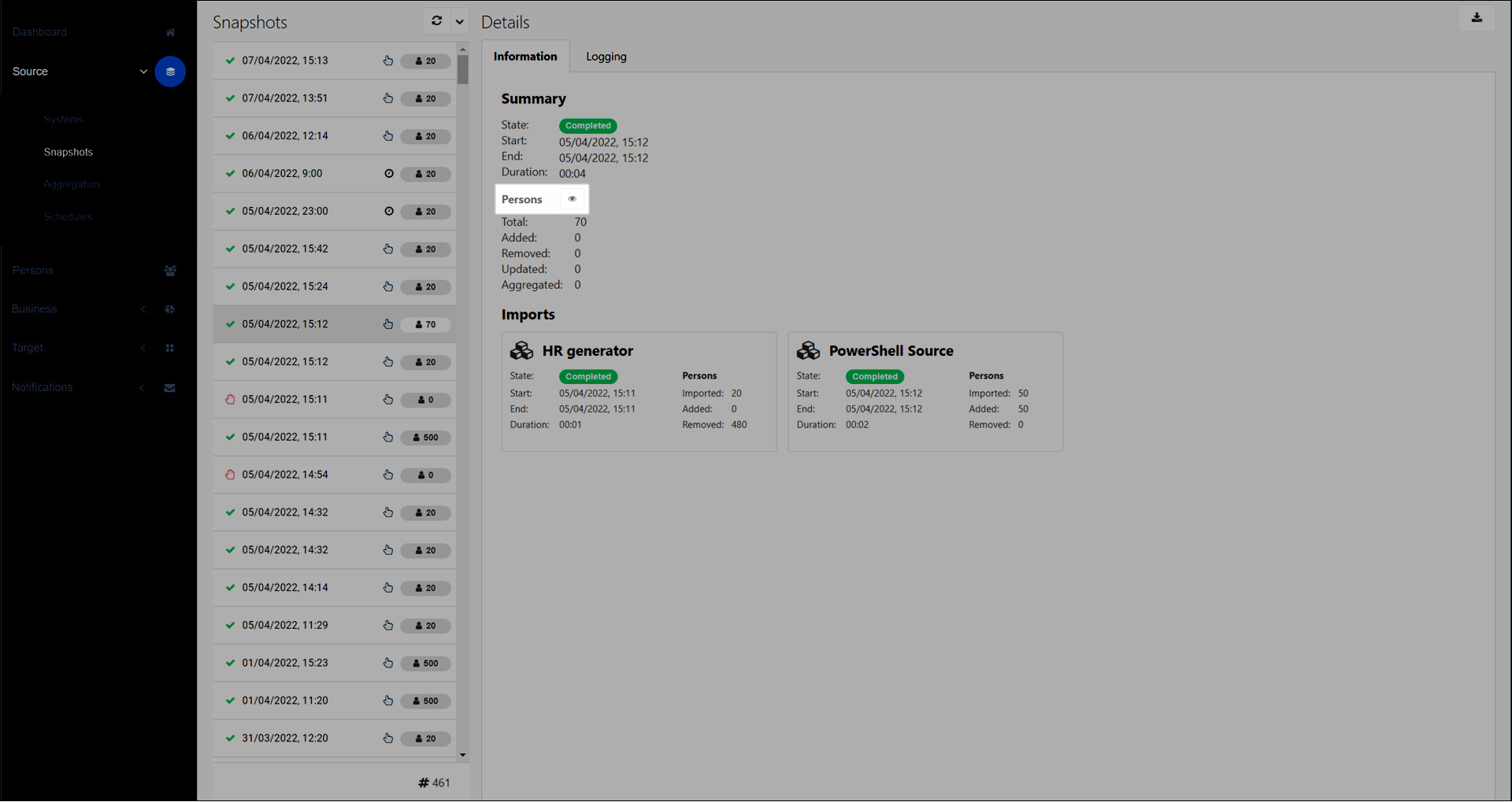 |

FAQ: Service Automation
Q: | Why do I receive the following error message when trying to open a datasource in a delegated form? Http failure response for https://service-automation-prod-we.helloid.cloud/service/datasource/api/dataset/customerrelatedguid/paged-dataset?cachebust=randomnumber: 404 OK. |
A: | This error usually means the Service Automation agent was temporarily unavailable when the request was made. It typically resolves itself within a few minutes once the agent reconnects automatically. If this takes more than 5 minutes, an incident will be created. |